One of my own properties spent weeks showing this where the live user count should be:
Real-time data not supported for this comparison.
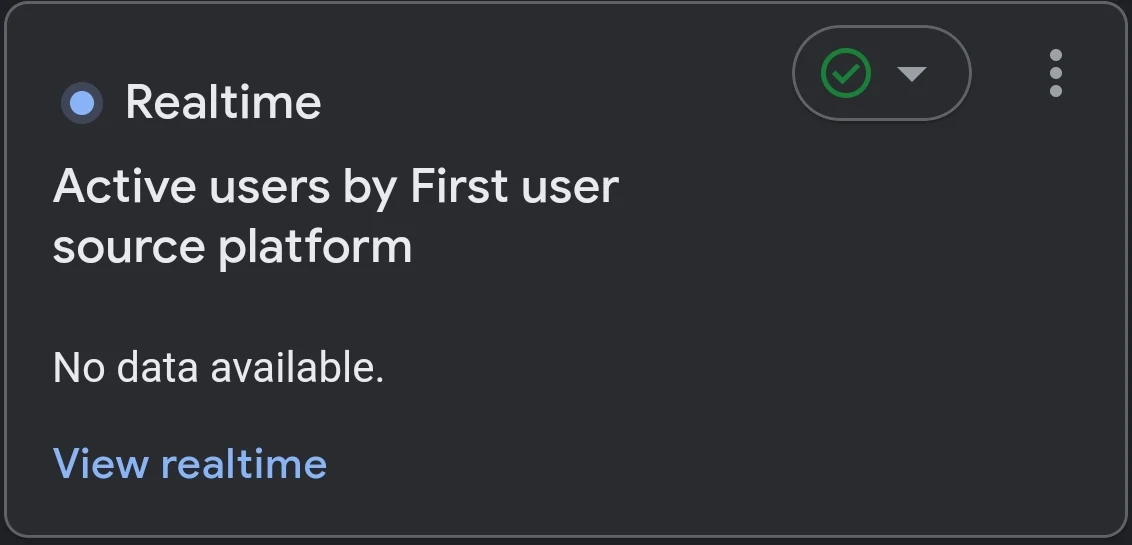
Nothing was comparing anything. No segment chip, no date comparison I had set, no filter I had built. Reports → Realtime worked perfectly on the same property at the same moment and showed real visitors in real cities. Only the card on the Home page was broken.
What actually caused it
I did it myself, months earlier, and forgot.
The realtime card on Home has two small dropdowns on it: one picks the dimension, one picks the metric. From a desktop browser I had set that card to Active users by First user source platform.
Realtime does not serve that dimension. Realtime only offers a short list, and the platform dimensions are not on it. So the card asked for a pairing that cannot exist, and GA4 answered with a sentence about comparisons.
That wording is the whole problem. The card does not say “this dimension is not available in realtime”. It says “comparison”, which sends you looking at segments, date ranges, filters and account settings, none of which are involved.
Two more things make it hard to spot:
- The choice is saved per user, per property. Nothing in Admin changes, so every setting you check looks identical and innocent. A colleague on the same property can see a perfectly healthy card while yours is broken.
- The card keeps the broken state across sessions. It is not a rendering glitch that a refresh clears.
What the message is not
I spent most of the hunt eliminating things, so I will save you that part. On the two properties I compared, every one of these was identical, and none of them was the cause:
- Benchmarking (Admin → Account settings → Modelling contributions & business insights). I switched it off on the broken property. The card did not recover.
- The previous-period date comparison. I assumed this was it, because the Home chart legend read “Last 7 days / Previous period”. Then I checked the working property. Its legend says exactly the same thing, and it sends the same two
dateRangesin the same request. Not the cause. - Segment comparisons. Only the default “All Users” chip on both.
- Reporting identity (
identityBlendingStrategy). Same value on both. - Data filters. Both properties carry one identical “Internal Traffic / Exclude / Testing” row.
- Page layout. I claimed at one point that the two Home pages were laid out differently. They are not. The realtime card carries a byte-identical class string on both. The person I was arguing with was right and I was wrong, which is the only reason I kept looking.
If you are reading this because you are turning settings off one at a time, stop. The fault is not in the property. It is in the card.
The evidence, if you want to check
GA4 saves the state of each Home card per user, per property. That saved record says which card type sits in the slot and which metric and dimension it is showing.
On my working property the realtime slot held card id 2, type 17. On the broken property it held card id 176, type 62.
Card 176 / type 62 is what my dimension pick had turned that slot into. It is not a realtime card, so it cannot do realtime, and every page load since rebuilt it and apologised for it.
Fix 1: put the dimension back
Try this first. On the Home card, open the dimension dropdown and set it back to Town/City (or Country). That is the supported pairing, and the card starts counting again.
If the dropdowns are still on the card while it shows the error, this is the whole fix and you can stop reading.
Fix 2: overwrite the saved record
On my property the card had degraded far enough that the controls were gone, so there was nothing left to click. In that state you have to write the good record back yourself. Do it from a signed-in GA4 tab with the browser console open, on the broken property’s Home page.
Step 1: get the token. GA4 signs these writes with an X-GAFE4-XSRF-TOKEN header. Grab one off a real request:
const orig = XMLHttpRequest.prototype.setRequestHeader;
XMLHttpRequest.prototype.setRequestHeader = function (k, v) {
  if (String(k).toLowerCase() === 'x-gafe4-xsrf-token') window.__xs = v;
  return orig.call(this, k, v);
};
Then change the Home date range (Last 7 days → Last 28 days). That forces GA4 to talk to the server, and window.__xs fills in.
Step 2: write the good record. Replace the account and property IDs below with yours. Note the dimension: city, the one realtime actually supports.
const u = '/analytics/app/data/v2/intelligence/saveduserstate/card/intelligent-home'
        + '?dataset=aACCOUNTpPROPERTY&hl=en_GB&gamonitor=gafe'
        + '&state=app.reports.reports.intelligenthome';

const body = {
  card: {
    id: 2, type: 17,
    metric: [{ id: 'activeUsers' }],
    dimension: [{ id: 'city' }],
    selectedDimension: [{ id: 'city' }],
    selectedMetric: [{ id: 'activeUsers' }],
  },
  context: {
    reportContext: {
      propertyId: 'PROPERTY',
      pageId: { curriculumReport: { reportId: 'intelligent-home', ruid: 'intelligent-home' } },
    },
    cardId: { cardId: 2 },
  },
};

await fetch(u, {
  method: 'POST',
  credentials: 'include',
  headers: {
    'Content-Type': 'application/json',
    'Accept': 'application/json',
    'X-GAFE4-XSRF-TOKEN': window.__xs,
  },
  body: JSON.stringify(body),
}).then(r => r.text());
A success comes back as an anti-hijacking prefix followed by a default object. GA4 pads every response with those five junk characters, so strip them before parsing.
Step 3: reload the page properly. Changing the URL hash leaves the old card mounted and does not refetch. Use a real reload and give it half a minute.
The trap that cost me three attempts
My first three POSTs all came back HTTP 500, errorCode: 13, and I read that as “the server rejects this card for this property”. It was not. I had posted to the bare path and dropped the query string. The dataset, hl, gamonitor and state parameters are not decoration; without them the write fails with a generic 500 that tells you nothing. Add them and the same body returns 200 immediately.
Worth remembering generally: a 500 from an internal Google endpoint is at least as likely to be a malformed request as a refused one.
Before you reach for Fix 2
Two honest caveats.
It uses an undocumented internal endpoint. It is not part of the GA4 API, Google can change it without notice, and it is not something I would run on a client’s property without telling them first. It only writes your own saved card state, so the blast radius is small, but small is not none.
And check the boring things first. Reports → Realtime is the supported view and it kept working throughout, so if you only need the number, that is where it lives. The Home card is a convenience. I fixed it because a broken card on the first screen you see every morning is a daily papercut, not because the data was unreachable.
The bigger lesson is the one I keep relearning: an error message tells you what the software noticed, not what you did. “Not supported for this comparison” was true in its own way. It just never mentioned the dropdown I had touched. Separating “the tool is wrong” from “my site is wrong” is most of what a technical audit actually is, and it is the same reflex that stops people rebuilding a healthy site because a Google report went quiet, the way an empty Core Web Vitals report so often does.
Sources
- Observed directly on two GA4 properties in one account on 20 September 2026: a broken property and a working reference property, compared request by request.
- The dimension pick that caused it was mine, made from a desktop browser on the Home card, and recalled after the repair. The screenshot above is the card in its error state.
- The account-level data sharing controls, including the benchmarking toggle, are at Admin → Account settings → Data sharing settings, checked 20 September 2026.
- No Google documentation covers the
saveduserstateendpoint. Everything above about card ids, the required query string and the response prefix is from observed traffic, not from a published spec.