Google Search Console added platform properties on 7 July 2026, and Instagram is one of the four supported platforms. This guide walks through adding an Instagram account, using screenshots I took while adding my own account on 16 August 2026. If you want the background on what a platform property is and what the reports do and do not contain, that is in the platform properties guide. This page is only the how.
Before you start
- You need to be able to log in to the Instagram account in a browser. The verification is a login, nothing else. No meta tag, no DNS record, no file upload.
- Have the Google account you use for Search Console signed in first. The Instagram link is stored against that Google account.
- If you post from a business or creator account, log in as that account. The popup verifies whichever Instagram account is signed in when it opens.
- Allow popups for search.google.com. The Instagram step opens in a new window.
Step 1: open the Add property card
Go to search.google.com/search-console/welcome, or open Search Console, click the property selector at the top left and choose Add property. Under the “Add a website” button there is a block marked New: “Add a platform account or channel to discover how visitors find your content on Google Search”. Instagram is the first row. Click Add.
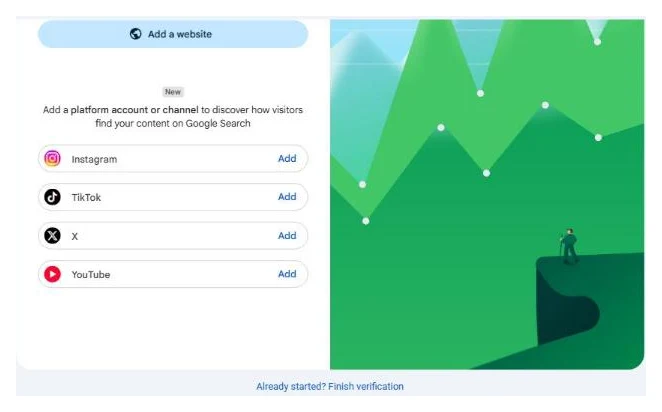
If you do not see the four rows, your account is still in the rollout gap. There is nothing to request. Check again in a few days.
Step 2: Google’s consent screen
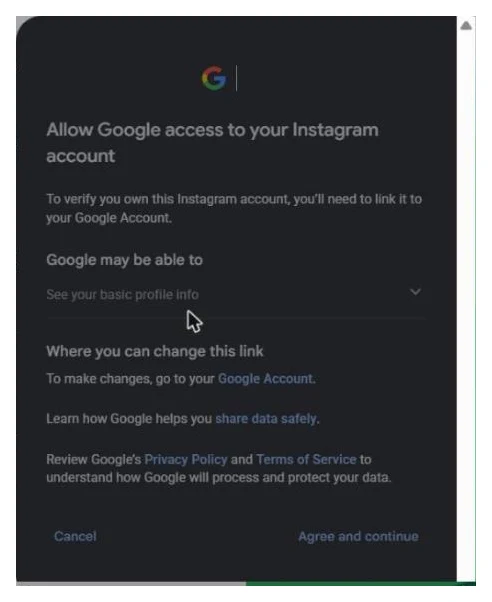
A dark dialog opens inside Search Console: “Allow Google access to your Instagram account”. It explains that to verify you own the account you need to link it to your Google Account, lists what Google may be able to do (See your basic profile info), and says where you can change the link later (your Google Account). Click Agree and continue.
Step 3: Instagram’s popup
A new browser window opens on instagram.com. If you are not logged in, log in now, as the account you want to verify. Then Instagram shows its own permission screen: “Google-IG is requesting access to: yourhandle. If you select Allow, Google-IG will be able to: View profile and access media (required)”. Click Allow.
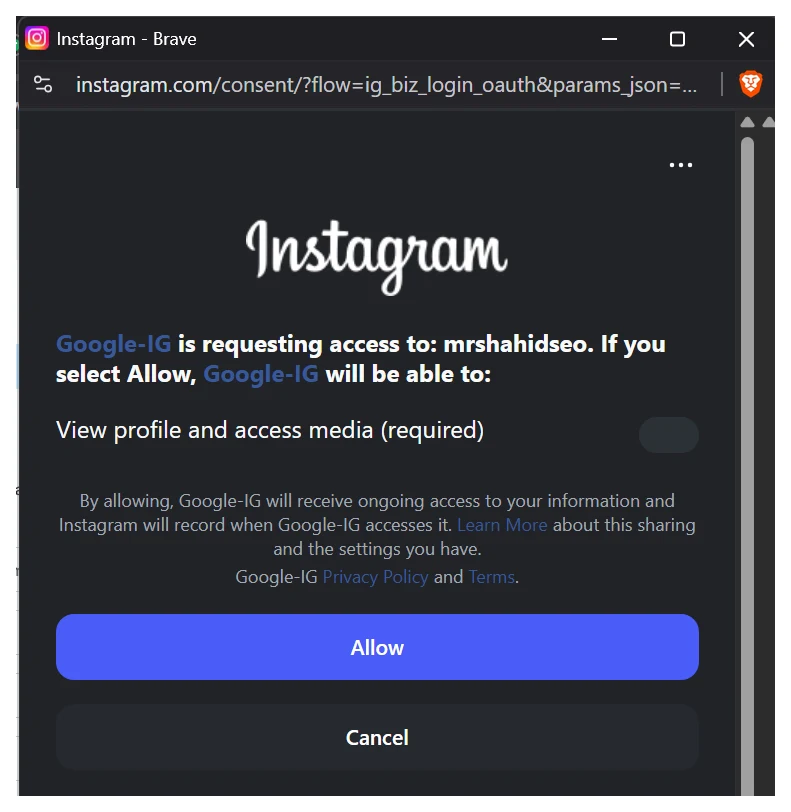
Two things worth knowing here. The handle shown in bold is the account being verified, so if it is the wrong one, click Cancel, log out of Instagram in that window and start again. And “access media” is what lets Google match your posts to search results. It does not let Google post, edit or delete anything.
The popup closes on its own.
Step 4: property added
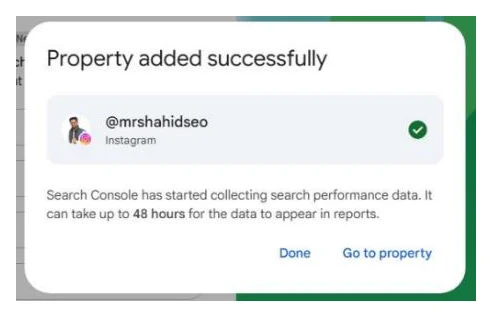
Back in Search Console: “Property added successfully”, your handle with Instagram under it and a green tick, and the line “Search Console has started collecting search performance data. It can take up to 48 hours for the data to appear in reports.” Click Go to property.
What you see next
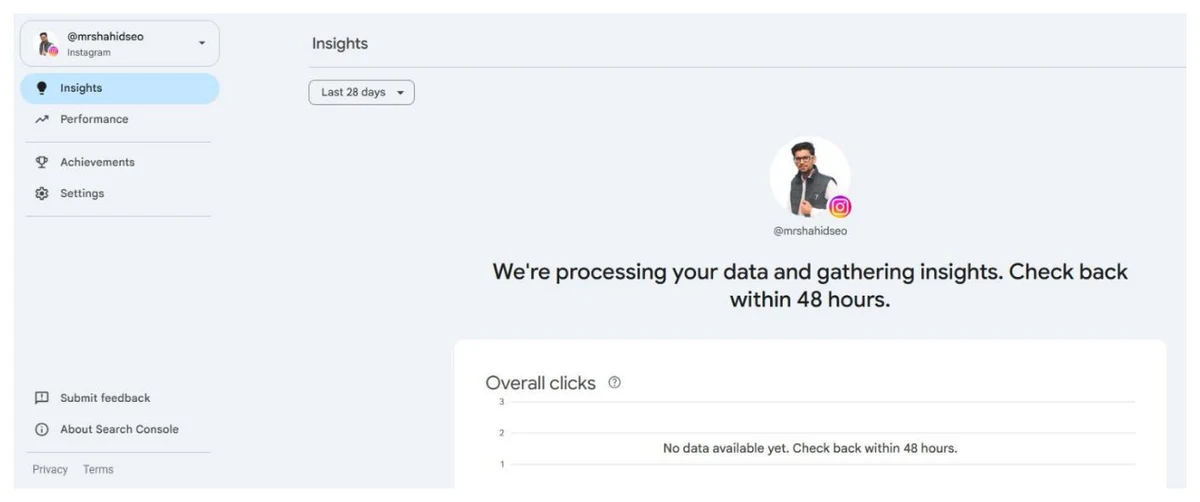
The property opens on Insights with four items in the left navigation: Insights, Performance, Achievements and Settings. There is no URL Inspection, no Sitemaps and no Page indexing. On day one both Insights and Performance show a processing message.
Once data lands, Performance has QUERIES, POSTS, COUNTRIES, DEVICES, SEARCH APPEARANCE and DAYS tabs. POSTS lists individual post and Reel URLs, so you can filter /p/ against /reels/ to see which format Google surfaces. Stories that appear in Search count as impressions too. The default date range is 28 days and the 24-hour view is available.
Managing the property
Settings has Users and permissions, and a REMOVE PROPERTY link. To let a client or colleague see the reports, add them as a user there. To remove the link between Google and Instagram entirely, revoke it in your Google Account under third-party connections, and in Instagram under Settings, Website permissions, Apps and websites.
Search Console re-checks ownership periodically. If the Instagram session expires or the link is revoked, the property pauses until you run the flow again. Data collection continues in the meantime.
Troubleshooting
| Symptom | Cause | Fix |
|---|---|---|
| No Instagram row on the Add property card | Rollout has not reached your account | Wait; nothing to request |
| Popup never appears | Popup blocked | Allow popups for search.google.com and click Add again, or use “Already started? Finish verification” |
| Wrong handle in the popup | Different Instagram account signed in | Cancel, log out of Instagram in the popup window, retry |
| Verified, empty after three days | Posts not surfacing in Google, or account private | Make the account public; write captions with the words people search |
| Property paused | Periodic ownership check failed | Repeat steps 1 to 4 |
Related
Quick answers
Do I need a website to add Instagram to Search Console?
No. Since July 2026 an Instagram account can be its own Search Console property. You verify it by logging in to Instagram, not by editing a website. If you have never used Search Console before, the welcome page shows the Instagram row straight away.
Does my Instagram account need to be a business or creator account?
Google has not published a requirement. The Instagram popup in the flow is Meta's business login (the URL contains ig_biz_login_oauth), which suggests the professional account types are what Meta expects. My account is a professional account and verified in one pass. If a personal account fails, switching to a professional account in Instagram settings is free and reversible.
What does Google get access to?
Two things, in two places. Google's own consent screen says See your basic profile info. Instagram's popup says View profile and access media, marked required. Google reads the profile so it can match the account to search results. You can revoke the link from your Google Account and from Instagram's Apps and websites settings.
Why is my Instagram property empty?
Data takes up to 48 hours to appear, and Google's help page says a few days. After that, an empty report means your posts are not showing in Google Search, Discover or News for any query. Small or private accounts see nothing. Check that the account is public and that captions contain the words people search for.
Can I add more than one Instagram account?
Yes. Each account is a separate property. Log out of Instagram between accounts, or use a different browser profile, so the popup logs in as the right one.
Will this improve my Instagram ranking on Google?
No. It is a reporting tool. Adding the property does not change how Google treats your posts. What it gives you is the list of queries and posts that already surface, which is the information you need to decide what to post next.