YouTube was one of the four platforms Google Search Console accepted from the first day of platform properties in July 2026, and it is the easiest of the three to add: there is no popup and no platform login. This guide shows the flow with the screens I captured while adding my own channel on 16 August 2026, including the one place where it is easy to add the wrong channel. Background on platform properties, the reports and how to read them is in the platform properties guide.
Before you start
- Sign in to Search Console with the Google account that owns or manages the YouTube channel. This matters more than on the other platforms, because Search Console does not ask you to log in to YouTube; it lists the channels already tied to your signed-in Google account.
- If the channel is a Brand Account, the Google account you use must be an owner or manager of it.
- No popup is involved, so popup blockers do not matter here.
Step 1: open the Add property card
Go to search.google.com/search-console/welcome, or click the property selector at the top left of Search Console and choose Add property. Under “Add a website” there is a New block, “Add a platform account or channel to discover how visitors find your content on Google Search”. YouTube is the last row. Click Add.
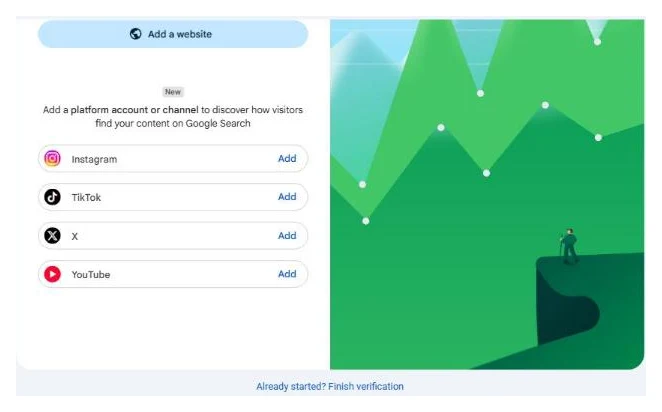
If the rows are not there, your account is still waiting for the rollout. Check back in a few days.
Step 2: pick the channel
Instead of a consent screen, a dialog opens inside Search Console: “Select a YouTube channel”. It lists every channel linked to your Google account, each with its avatar and handle, and a footer that says “The list only shows YouTube channels that are linked to” your email address. Click the channel you want, confirm the tick appears on that row, then click Add property.
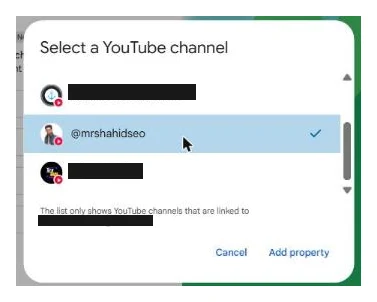
This is the trap. If you manage more than one channel, the list scrolls, and it is possible to have a different row highlighted than the one you meant. I did exactly that on my first pass and added a secondary channel. Check the tick before you click Add property. If you do add the wrong one, open that property, go to Settings and click REMOVE PROPERTY; it takes seconds and nothing else is affected.
Step 3: property added
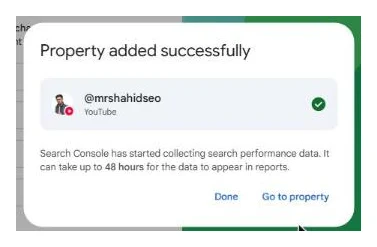
“Property added successfully”, the channel handle with YouTube under it and a green tick, and “Search Console has started collecting search performance data. It can take up to 48 hours for the data to appear in reports.” Click Go to property.
The property ID in the address bar is sc-creator-profile:youtube.com/channel/<channel id>. It uses the channel ID rather than the handle, so renaming the channel later does not break the property.
What you see next
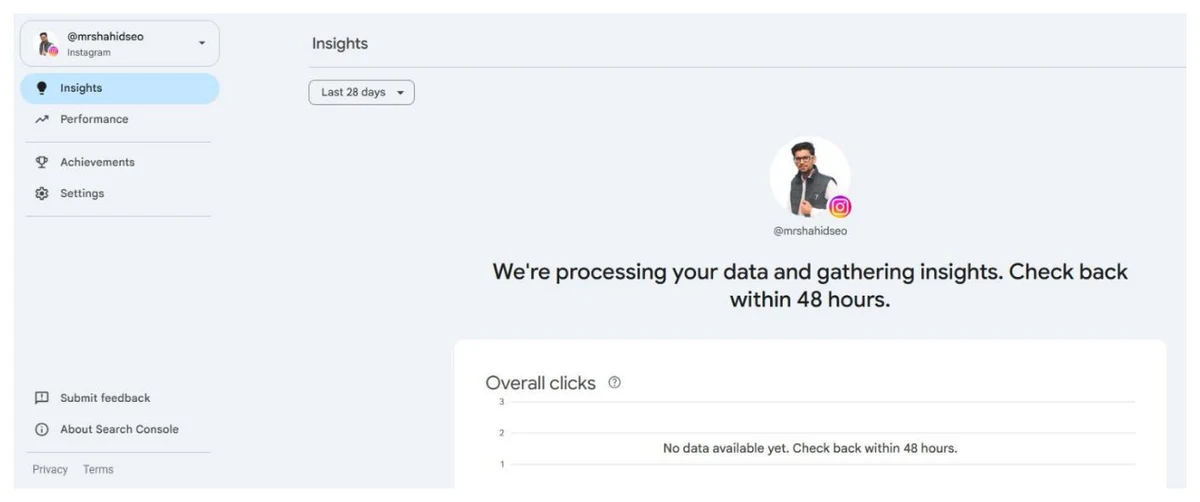
The property opens on Insights with four navigation items: Insights, Performance, Achievements and Settings. There is no URL Inspection, no Sitemaps and no indexing report. Day one shows processing messages on Insights and Performance.
Once data arrives, the Performance report has QUERIES, POSTS, COUNTRIES, DEVICES, SEARCH APPEARANCE and DAYS. On a YouTube property the POSTS tab holds /watch?v= URLs, /shorts/ URLs and playlist URLs, so a page filter on /shorts/ against /watch tells you which format Google is surfacing. A video that plays in Google’s own viewer counts as a click even when nobody reaches youtube.com, so clicks here will not match YouTube Studio’s external traffic figure.
Managing the property
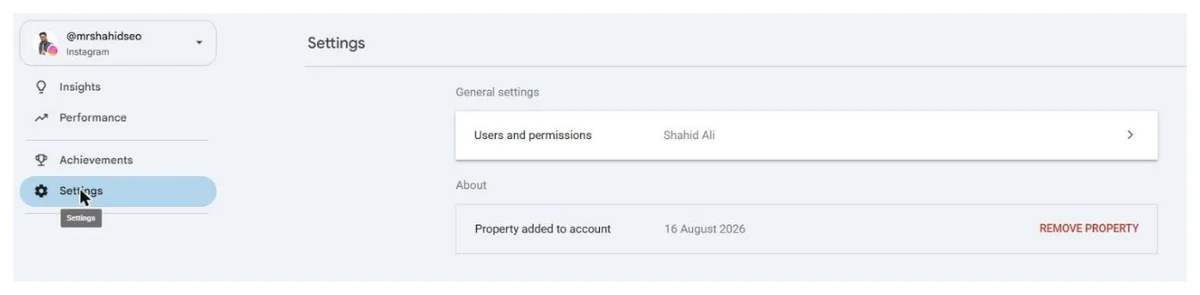
Settings has Users and permissions, and REMOVE PROPERTY. Add an editor or a client as a user there. Search Console re-checks ownership periodically; if the channel is unlinked from your Google account or you lose manager access to a Brand Account, the property pauses until you add it again.
Troubleshooting
| Symptom | Cause | Fix |
|---|---|---|
| No YouTube row on the Add property card | Rollout gap | Wait; nothing to request |
| Channel missing from the picker | Channel belongs to another Google account, or a Brand Account you do not manage | Sign in to Search Console with the owning or managing account |
| Added the wrong channel | Different row was highlighted | Open that property, Settings, REMOVE PROPERTY, then add again |
| Verified, empty after three days | Videos not surfacing in Google | Descriptive titles and descriptions on searched topics; check the account is public |
| Property paused | Channel unlinked or manager access lost | Repeat the flow |
Related
Quick answers
Do I need a website to add YouTube to Search Console?
No. A YouTube channel can be its own Search Console property since July 2026. You do not verify anything on a website, and you do not even log in to YouTube: Search Console reads the channels linked to the Google account you are already signed in with.
My channel is not in the list. Why?
The picker only shows channels linked to the Google account signed in to Search Console. A channel owned by another Google account, or a Brand Account you are not a manager of, will not appear. Sign in to Search Console with the account that owns or manages the channel and try again.
Is a YouTube platform property the same as the youtube.com property?
No. A YouTube platform property is your channel, identified by its channel ID, and it reports how your videos and Shorts perform in Google Search, Discover and News. It is not a website property for youtube.com, which you cannot verify anyway.
Does this show YouTube search data?
No. It shows Google Search, Discover and Google News. Searches inside YouTube stay in YouTube Studio analytics. The two are complementary: Studio tells you what happens on YouTube, Search Console tells you what happens on Google.
Can I add several channels?
Yes, one property per channel. Repeat the flow and pick a different channel each time. Each ends up as its own property in the selector, so name channels distinctly if you manage many.
Why is my YouTube property empty?
Data takes up to 48 hours to appear. After that, empty means Google is not surfacing your videos for any query. Videos with descriptive titles on topics people search for appear in the video carousel and in Discover; the rest do not. Playlists show as their own URLs, not as the videos inside them.